The September Trap
The most common productivity mistake students make does not happen during exams. It happens in the first week of the semester, and it looks exactly like being productive.
Downloading apps feels like studying. Each install delivers a small dose of momentum: a beautiful new note-taking app, then a second one because a video said it was better, a task manager, a calendar replacement, two flashcard tools, three focus timers. None of it has produced a single organized lecture yet, but it feels like preparation, so it continues until the Dock is full. Then the real semester starts, and there is no time to learn seven tools while also attending classes, so most of them are quietly abandoned. What remains is the default chaos every student knows: PDFs in Downloads sorted by date, screenshots on the Desktop, half a semester of notes split across three apps that each hold a different third of it.
The fix is a principle, not another app: one app per job, with the jobs chosen so they do not overlap. A job is something the semester demands from you repeatedly, week after week. Keeping every lecture, PDF, and recording findable is a job. Memorizing terminology and formulas is a job. Managing citations is a job. Writing is a job. Staying off your phone during a reading is, honestly, a job. When two apps compete for the same job, you do not keep both and decide later, because later never comes; you pick one in the first week and delete the other. A stack built this way is small enough to learn in an afternoon and boring enough to stop thinking about, which is the entire point. The best student setup is the one you never touch again after setup week.
That is why this guide is organized by job rather than by app count. The question is never which twenty apps are good in 2026. Plenty are. The question is which one app should own each job on your Mac this semester.
The Stack at a Glance
Six jobs cover a semester. Here is the whole stack, one line per job, before we look at each pick honestly.
- The library Mindly. One ⌘M shortcut captures lectures, PDFs, slides, screenshots, and voice memos, and AI organizes all of it into one searchable semester. Apple Notes is the fine free floor if your needs are light.
- Memorization Anki. Free, open, and built on spaced repetition, the one study technique with decades of memory research behind it. Dated interface, unmatched results.
- Citations Zotero. Free and open source. Saves papers with their metadata and builds bibliographies inside Word and Google Docs through its citation plugin.
- Writing Pages, already on your Mac, or Word through your school Microsoft 365 plan. iA Writer or Ulysses if you want a quieter, more focused editor for long-form work.
- Focus macOS Focus modes first, because they are free and already installed. A dedicated blocker like Cold Turkey if the feeds keep winning anyway.
- Everything else Raycast as a faster launcher, whatever cloud storage your school provides for submissions and group work, and Notion via its student plan if a club or team needs shared project pages.
| Job | Pick | Cost | Why this one |
|---|---|---|---|
| Library and notes | Mindly | Free to start | One shortcut captures every format; AI organizes the whole semester |
| Flashcards | Anki | Free | Spaced repetition with the strongest evidence behind it |
| References and citations | Zotero | Free | Collects sources and inserts citations into Word and Docs |
| Writing | Pages or Word | Free or via school | Clean drafts in the formats professors expect |
| Focus | macOS Focus modes | Built in | Silences the feeds during study blocks |
| Launcher | Raycast | Free tier | Faster switching between apps, files, and courses |
A Closer Look at Each Job
A one-line verdict is easy to write and easy to distrust. Here is the honest reasoning behind each pick, including where the free option is genuinely enough.
The Library: One Place for Everything a Course Produces
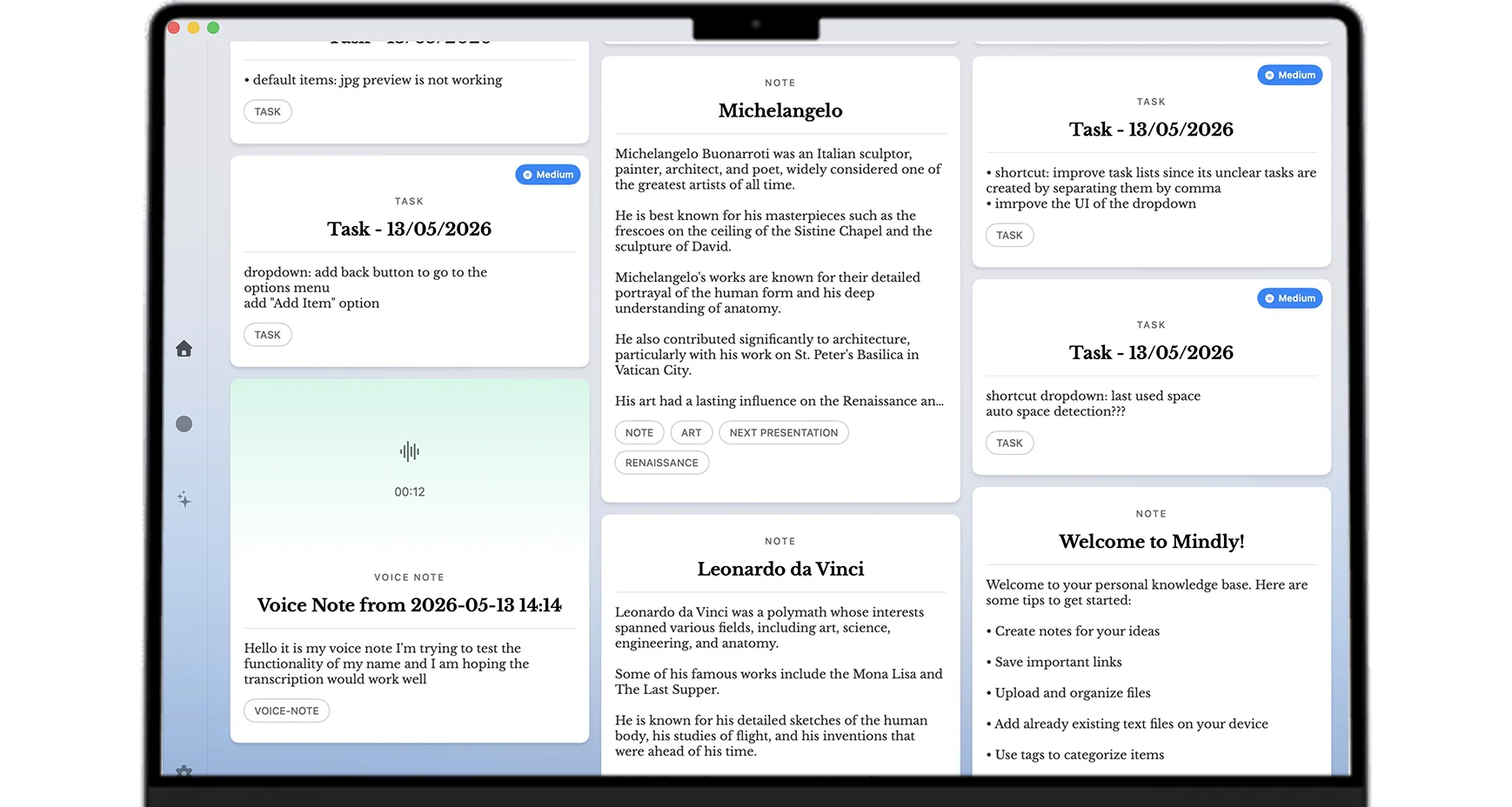
This is the heaviest job in the stack, because a single course week produces more formats than most apps can hold. The lecture is a recording. The slides are a PDF. The textbook chapter is another PDF. Office hours end with a screenshot of the whiteboard, the walk home produces a voice memo, and the concept that finally made sense came from a link a classmate sent. The library job is turning all of that into one searchable body of material, and it is the job where our pick is Mindly. The reason is that Mindly collapses the whole job into a single habit: press ⌘M from anywhere on your Mac, and whatever you are holding, a typed note, a link, a PDF, a file, a screenshot, a voice memo, lands in the library. The AI then does the librarian work you were never going to do by hand. It transcribes the audio, reads the text inside screenshots and scanned pages, summarizes the long material, tags everything by topic, and links related items to each other. By exam week you search in plain language, ask any saved lecture or PDF questions in its own context, or open a mind map of a topic and see the whole semester connected. The library itself lives locally on your Mac.
The honest caveat: if your courses are light on formats, mostly typed notes, few readings, no recordings, Apple Notes is a perfectly fine free floor. It is already installed, it syncs to your iPhone, and it is reliable. The upgrade to a real library starts to matter when the material spans formats and you need to find a specific idea months after you saved it, which is exactly the situation most degrees create by week ten.
Flashcards and Memorization
For anything that must be recalled cold, terminology, formulas, dates, anatomy, vocabulary, the pick is Anki, and it is not close. Anki is free on the Mac, open source, and built entirely around spaced repetition, the technique with the strongest evidence base in the memory research literature: the app schedules each card to reappear right around the moment you would otherwise forget it. The honest downsides are real. The interface looks a decade old, the settings menu is intimidating, and the first hour is confusing. None of that matters next to the result, which is why medical students, the most memorization-burdened people in any university, have standardized on it almost completely. The one mistake to avoid is starting in week twelve. Spaced repetition compounds over time, so a deck you feed from the first week of lectures costs minutes a day and makes finals week almost calm.
References and Citations
The citation job is narrow, but doing it by hand is one of the most miserable experiences a degree offers, usually at two in the morning before a deadline. Zotero solves it and costs nothing. It is free, open source, and maintained by an academic nonprofit rather than a company with a pricing team. The browser connector saves any paper or article with its full metadata in one click, and the citation plugin for Word and Google Docs inserts references as you write and builds the bibliography for you, in whatever style the course demands; switching from APA to Chicago is one setting, not an evening. If your program involves essays or research papers at all, install it in setup week, even though the payoff arrives with the first real assignment rather than the first day.
Writing
Writing is the job where students most often pay for something they already own. Pages is on every Mac and handles essays, reports, and formatting requirements without complaint, and most universities provide Microsoft 365 to enrolled students, which makes Word effectively free for the duration of your degree; check your school account before spending anything here. The genuine upgrades are the focused editors. iA Writer and Ulysses are both widely loved for the same reason: they strip the screen down to the text and make long writing sessions feel quieter, and Ulysses in particular is built for managing large multi-part projects like a thesis. Both are paid apps with pricing that changes often enough that you should check it yourself, and both are wants rather than needs. A first-year student loses nothing by writing in Pages.
Focus
Start with what is free and already installed. macOS Focus modes let you build a Study mode that silences everything except the people who genuinely need to reach you, turns on with one click or on a schedule, and syncs to your iPhone so the notification does not simply migrate to the other screen. For many students that is enough. The honest limitation is that Focus modes are consent-based: they stop notifications from interrupting you, but nothing stops you from opening the feed yourself, and the feeds of 2026 are very good at winning that negotiation. If you know that about yourself, a dedicated blocker like Cold Turkey exists precisely to be hard to talk your way out of; it blocks the sites and apps you name, for the period you set, and does not accept excuses mid-session. Buy the strictness only if you need it.
Everything Else Worth Having
Three honorable mentions complete the stack without adding another job. Raycast is a free launcher that replaces Spotlight and quietly absorbs a dozen small utilities, clipboard history, window snapping, quick calculations, and earns its place within a day. Cloud storage should simply be whatever your school provides, usually Google Drive or OneDrive; it is where assignments get submitted and group projects live, and it is deliberately not the same job as your library, because handing files in and finding ideas again are different problems. Finally, Notion deserves a fair mention: its student deal, where a school email gets the Plus plan free, is widely available in 2026 and genuinely generous, and Notion is a good home for the structured, shared things, a club wiki, a group project tracker, a society page. The one caution is the theme of this whole guide: if you let Notion take the library job too, you are back to building and maintaining databases by hand. Let each tool keep its lane.
Free vs Paid: What a Student Actually Needs to Spend
The honest answer is: very little, and possibly nothing. Most of this stack is free not as a trial but permanently.
Add it up. Anki is free. Zotero is free. Pages is free, and Word usually comes with your enrollment. Focus modes are built into macOS. Raycast is free for everything a student needs. Apple Notes is free. Notion Plus is free with a school email. A student can run the entire semester on that floor and spend nothing, and if money is tight, that is exactly what you should do, without feeling that you are studying with one hand tied.
The one place where paying can genuinely earn its keep is the library job, because it is the job that runs every single day and the one where the free floor gives up the most. Mindly is honest about how you find that out: the free tier holds 25 items with the full workflow, capture, AI organization, and search included, and requires no account, which is enough to run a real week or two of a real course and feel whether the difference matters to you. If it does, Mindly Pro is €7.99 a month or €44.99 a year, and the yearly price works out to less than most streaming subscriptions students carry without a second thought. If it does not, keep the money and keep Apple Notes; a free stack you actually use beats a paid one you feel guilty about. A good rule for all of it: never pay for anything in week one. Pay in week four, when you know which job actually hurts.
Setup Week: An Afternoon, Not a Semester
A stack this small sets up in one sitting, and setting it up before lectures accelerate is most of the battle. Here is the whole checklist.
- Install the stack in an afternoon Mindly, Anki, Zotero, and Raycast, then confirm Pages opens or sign into your school Microsoft 365 for Word. Set up one Study focus mode while you are at it. Done properly, this is two hours during syllabus week.
- Set the capture shortcut Make sure ⌘M works from anywhere on your Mac, then capture ten real things, a note, a link, a PDF, a screenshot, a voice memo, so the reflex exists before the first lecture does.
- Make the first course space One space per course, named the way the course is named in your head. This is the only structural decision the library ever asks of you; the AI handles the organizing inside it.
- Import the syllabus PDFs Every syllabus, reading list, and schedule goes in on day one. The skeleton of the whole semester becomes searchable before week one ends, and every later capture attaches to it.
- Build the first Anki deck from week one Ten cards from the first lecture of each memorization-heavy course. The entire value of spaced repetition is time, and week one is when you have the most of it.
Then stop. Resist the October urge to add a seventh tool or redesign what is working. The stack is finished; the semester is the project now.
Where Mindly Fits
Almost every job in this stack is settled by an excellent free tool with a narrow purpose. The library job is the exception, because it is not narrow: it is where the whole semester accumulates.
Mindly exists for exactly that job. One ⌘M shortcut captures anything a course throws at you, notes, links, PDFs, files, screenshots, voice memos, and the AI does the librarian work automatically: it transcribes recordings, reads text inside images, summarizes long readings, tags everything by topic, and links related material together. When you need something back, you search in plain language and the right lecture, page, or memo surfaces regardless of what you named it or when you saved it. You can open any saved item and ask it questions in its own context, or step back into a mind map and see how a topic connects across the whole course. The library lives locally on your Mac, no account is needed to start, and the AI processing runs over encrypted channels with your content not retained after the request, which matters when the library holds your entire academic life.
Notice what Mindly does not replace in this stack. Anki still owns memorization, Zotero still owns citations, your writing app still owns the essay. Those tools are the best at their jobs precisely because their jobs are narrow, and Mindly is built to sit alongside them, not compete with them: it is the place the raw material of the semester lands and stays findable, so every other tool has something to draw from. The free tier holds 25 items with everything included, which is enough to run the first weeks of a real course, and Pro is €7.99 a month or €44.99 a year if the library earns its place. One app per job, and this is the app for the biggest one.
Free for macOS, no account needed. Set up the library job in setup week and let it quietly carry the whole semester. Download Mindly →